Have a great experience of FaceTime calls with these 10 tricks
FaceTime allows you to make audio and video calls with iPhone, iPad, and Mac devices, but are you aware of all the features of this powerful tool, such as secret chat or screen sharing?
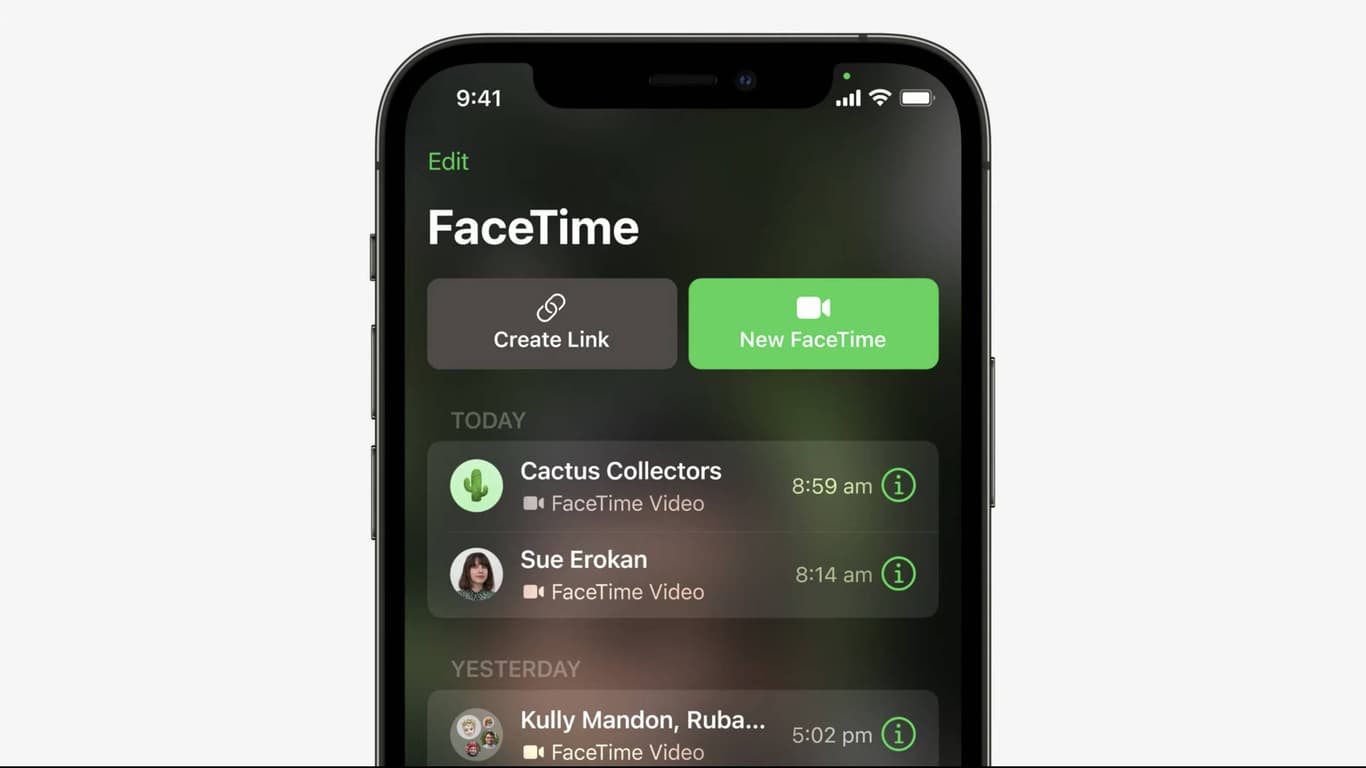
FaceTime allows you to make audio and video calls with iPhone, iPad, and Mac devices, but are you aware of all the features of this powerful tool, such as secret chat or screen sharing? In this article, you will learn about the attractive and less known features of Facetime.
1. Improving eye contact by correcting the viewing angle
In video calls, because of the camera angle, it may appear that you are not paying attention to the other party. Fortunately, FaceTime solves this problem using artificial intelligence. By enabling the "Eye Contact" option in the FaceTime settings, it will appear as if you are making eye contact with the other person, even if you are not looking directly into the camera.
2. Live chat with RTT capability
RTT technology allows you to send your message live as you type. Useful for people who are hard of hearing or have speech problems, this feature seamlessly integrates with cellular, Wi-Fi and VoIP calls. To enable it, enable RTT/TTY related options in Accessibility settings.
3. Transfer the FaceTime window to iPad
With Sidecar, Sidecar lets you use your iPad as a second display for your Mac. This feature is especially useful for users who use a Mac Mini without a display. To move the FaceTime window to the iPad, just click on the green icon on the top left and select the "Move to iPad" option.
4. Recording important calls
To record important FaceTime calls on iPhone, open Control Center and select the Screen Recording icon. To record on a Mac, use Command+Shift+5 and then select the desired part of the screen to record.
5. Remotely control another device by sharing the screen on Facetime
You can let someone else control your device remotely. This feature is very useful for fixing technical problems or making specific settings. After making the call, select "Share My Screen" option.
6. Using the iPhone camera instead of the Mac webcam
The low quality of the webcam of MacBooks is solved by using the Continuity Camera function. By selecting your iPhone in the FaceTime video menu, you can use your iPhone's high-quality camera as your primary webcam.
7. Save live photos
From FaceTime calls, you can take live photos of your calls by enabling the "FaceTime Live Photos" option in settings. These images are saved in the Live Photos album and you can convert them into GIFs.
8. FaceTime call with Android and Windows users
Even if the other party is using Android or Windows devices, you can contact them by sending a FaceTime call link through the browser. Just create and share the link.
9. Collaboration on FaceTime projects
It also provides the possibility of cooperation in projects. By sharing the project and selecting the Collaborate option, you can work on a project simultaneously with others.
10. Using shortcut keys to increase speed
Increase your speed and efficiency in FaceTime calls by using keyboard shortcuts on Mac. For example, you can enable or disable full screen mode by pressing Control+Command+F.
به این مقاله امتیاز دهید
امتیاز : ۵
تعداد رای : ۱